
How to use a free LLM in VS Code
Stop using expensive LLMs in VS Code. You bought a nice computer for writing code and playing videogames. It can run a large language model locally, and you can get the benefit of coding with AI without paying the price.
Also, running a model locally means that the code never leaves your computer. This can be a requirement if you're working on a highly sensitive codebase, or just want to make sure that you aren't giving away company secrets.

How to use a free LLM in VS Code
There are several ways that you could set this up. In this post I'm going to show you the easiest way to set it up, but it's not necessarily the most stable way to set it up, and some users may find that this doesn't work out of the box. If you want to run your LLM using Docker, then check out this prior post to see how.
1. Install the Ollama app
If you run your LLM using the Ollama app, then it will automatically run when you boot into Windows. This is convenient because you don't need to remember to start a second process or run a virtual machine.
Here's the link to download and install the Ollama app for Windows.
NOTE: This app requires a restart, which was not indicated in the installation instructions when I installed it.
2. Install the Ollama VS Code extension
Next you need to install the Ollama VS Code extension. The things that are underlined in red in this image are what you need to click.
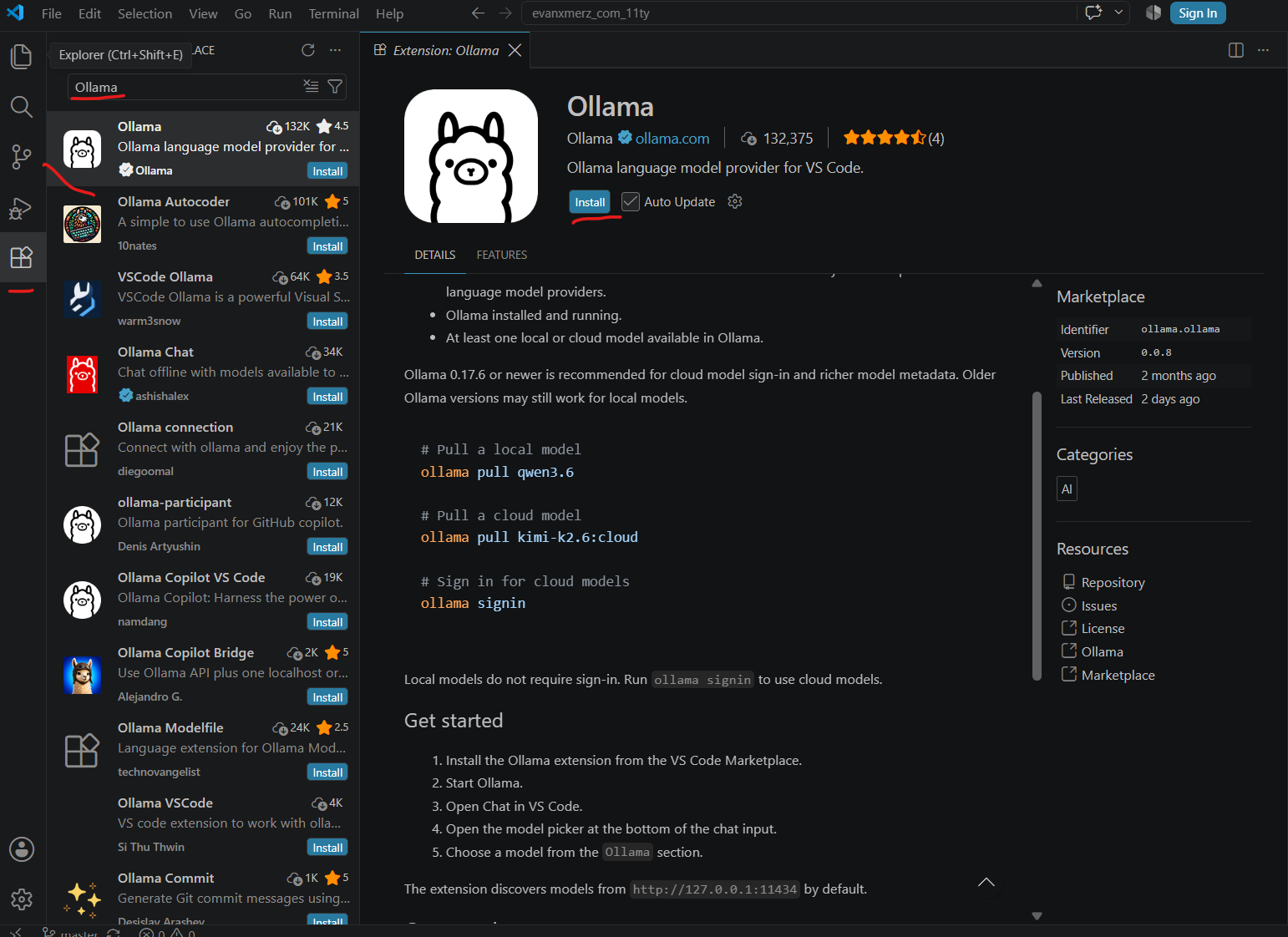
Click on the extensions icon in the left sidebar. It's the four boxes where one is crooked. Then type Ollama into the search bar, select the first result, and click the small blue install button.
3. Run the Ollama VS Code harness
I'm not sure I'm getting the terminology correct for this step because the documentation is totally out of sync across all sources, and this is rapidly evolving. BUT you will need to run the following script to connect Ollama to VS Code.
ollama launch vscode
This will ask you to select a model, which it will then install. It doesn't seem to support every model, so I selected gemma4:26b for my model.
This requires a restart of VS Code after the command completes.
Hardware Note: Large models require significantly more memory. The number after the colon in the model name indicates the number of parameters for that model, which correlates with the amount of memory that the model will use. Start with small models like tinyllama, then try models with 1b (1 billion) parameters if your computer is struggling with the larger models.
4. Open the VS Code chat interface and begin prompting
Click "View" > "Chat". That will open the chat interface. Then you can immediately begin prompting. Yes, it will be much slower than the commercial models hosted online, but it will be free.